





























 | |
| Scroll down to see all the buttons! |
To view our previous social media posts visit here:
Social Media Icons for you (with an added Pinterest Icon)
Pinterest:

RSS:

Vimeo:

You Tube:

RSS:
Twitter 1:

Twitter 2:

Email:

Blogger:

Facebook:

Add This:

Google Plus:

Instagram:

Heart:

PayPal:

Wordpress:

Flickr:

Linkedin:

Picasa:

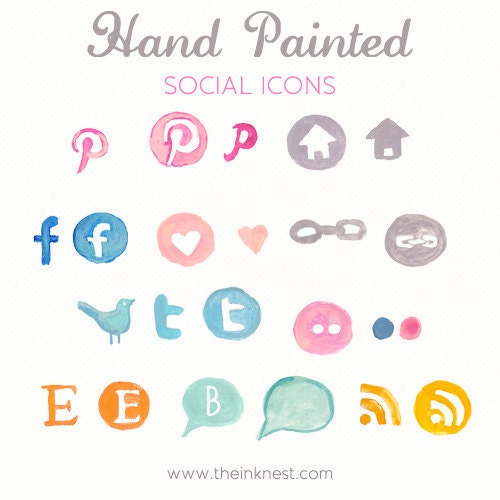
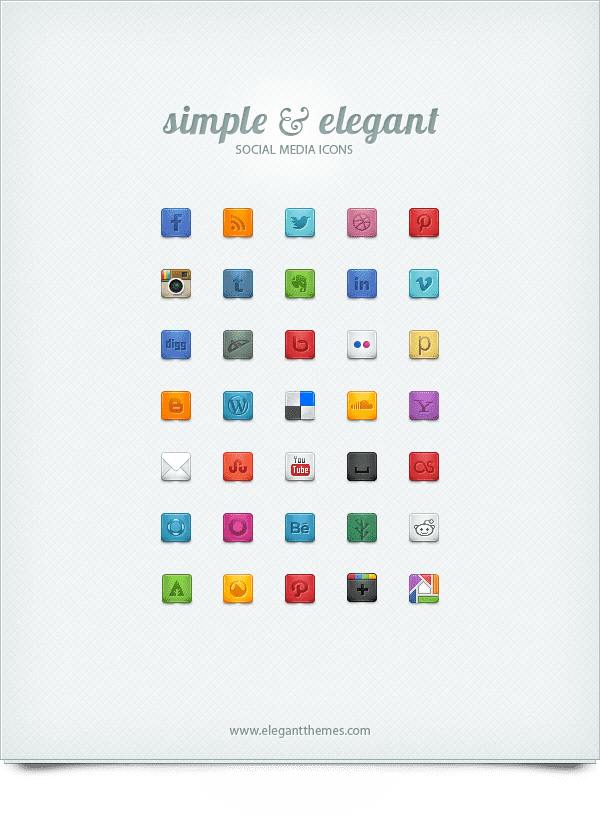
For more fun social media icon sets on the web, check these out (click the image to visit the site):








Totally awesome list! Thanks Lyndsay!
ReplyDeleteThese are awesome! I've looked for buttons like this -- all the same type w/o a lot of success. I appreciate you sharing these. Can you give me advice on the e-mail button? Do I just add my e-mail address in the appropriate space? -- because I tried that twice and it didn't work. It linked back to an unavailable page on my blog. Can you help? Thanks again! ~Sally
ReplyDeleteThese are great! Thanks so much for sharing them Lyndsay!
ReplyDeleteHilda
OMG Thank you :3
ReplyDeleteFor the email button, insert "mailto:youre-mailaddresshere"
ReplyDeleteI've justed used these on my site and they lined up side by side perfectly. Thank yoo ;)
ReplyDeleteCakeyboi, glad to hear it! Your site looks absolutely delicious! :)
ReplyDeleteI'm still in my first year of blogging, so all is a new adventure. I'd like to add a "Pin it" button to each of my posts so that readers can easily pin the post if desired. Any ideas on where I can get info to do this? I read one tutorial, but it was pretty heavy duty html foreign language stuff. I'd appreciate any suggestions.
ReplyDeleteYou are awesome! This is the first icon set I have found that has everything I'm looking for!! And you made it so easy to do!!!
ReplyDeletevery thank you. More and more people have pinterest account and we need to add a "pin it" button that our friends can be easy to pin our beautiful pictures from our online shops
ReplyDeleteThank you, I've been putting this off and you made it so easy, it was fun.
ReplyDeleteThanks so much! Ive been wanting to add these to my site, and your information is great!
ReplyDeleteTHANK YOU - struggled all evening linking to pictures in photobucket...didnt seem to have anything wrong...I found your site, linked to your lovely icons and done..I can now go to bed.... thank you
ReplyDeleteI cannot get these to work. They show up but for some reason they are being linked to my blog site /"enter your site here". help!
ReplyDeletefixed it :) need http://
ReplyDeletethese are awesome! Thanks for sharing darling!
ReplyDeleteThanks so much for the buttons - they were super easy to use on my blog. Check them out! www.brainygirlsblog.blogspot.com (they're on the upper right side of the page). Thanks again! :o)
ReplyDeleteThank you for the buttons and the guide - I've been wondering how to get social media buttons onto my website for a while. And now, I've finally done it - mostly successfully. The only one I'm having problems with is the feedburner as I don't know how to find the necessary URL - any ideas?
ReplyDeleteTo find your "feed" you will type www.feed.feedburner.com in your browser and it should ask you to sign in with your google account. Of if you're already signed in it would look like this: http://feeds.feedburner.com/BlogGuidebook (except it would be your name, not ours).
DeleteHope this helps...it's kind of strange no one has this posted somewhere.
Oh, I found this link, but it didn't help me: https://help.aweber.com/entries/21742256-Where-Do-I-Find-the-RSS-Feed-URL-
Here's another post I found: http://athlyngreen.hubpages.com/hub/How-to-find-A-Blogs-RSS-Feed-URL
DeleteThank you for the further info. I did try, but couldn't quite get it. I cried out to Twitter and someone found it for me.
DeleteI am loving my new blog buttons - thank you.
I am having a hard time with the Instagram button. What exactly do I insert in the "enter your link here"? Sorry for the silly question!
ReplyDeleteThe link is the URL you would go to to get to your Instagram account, such as: www.instagram.com/youraccountname
DeleteYou have to already have an account set up etc. Good luck!
thank you so much they fit perfectly!
ReplyDeleteThank you so much ! so happy with my new icons, this helped so much :) http://aeroplanewishes.blogspot.co.uk/
ReplyDeleteThank you for this! This is extremely helpful.
ReplyDeleteThank you!!!!
ReplyDeleteThis comment has been removed by a blog administrator.
ReplyDeleteWow! These are beautiful! Thank you for posting them. I do have a question though. When I put these icons on my blog with the url to my social media sites it just redirects me back to my blog instead of my social media. :/ How can I fix this? Thank you so much!
ReplyDelete-Michelle
herfashionlust.blogspot.com
MIchelle, probably have a bit of code wrong somewhere...scroll through and double check or redo. Hope you can get it to work.
DeleteThank you for the help :) , wish you had a tumblr icon though!
ReplyDeletewww.carolinelovescoffee.blogspot.co.uk xx
Thank you!
ReplyDeleteThank you so much for "Hassel Free" buttons! They Worked perfectly and look great!
ReplyDeleteExactly what I was looking for! Thank you!
ReplyDeletesugarloadedgun.tumblr.com
Hi! Your Blog has been so incredibly helpful to me! I have decided to start my blog back up again, and with Blogger changing, your website has helped a great bit! I am looking at your Social Media section, and I wanted to use yours and add my Facebook, Twitter, Pinterest, etc, but when I added them, they're going Vertically on my page instead of Horizontally, and I'd like them to go Horizontally. How do I go about getting them that way?
ReplyDeleteThanks so much! Follow me at keepingupwithcaitb.blogspot.com :)
Caitlin, to have them go horizontally you will have to size them so they will fit specifically in the width of your sidebar. If you sidebar is 200 pixels wide then your buttons will have to only equal 200 pixels total...
DeleteIf you're using Firefox you can actually drag the buttons to change the size. Let me know if you need more help!
thank you!!
ReplyDeleteYou are seriously the best!! Thank you so much!
ReplyDeleteThank you for sharing this. =)
ReplyDeleteAngel on Rustic Modernist
Wow, after struggling and pulling my hair out for months, I have finally found the perfect buttons here! Thank you so much.
ReplyDeleteI've used different social media icons over the years but there always seems to be problems cropping up with them but these are perfect and super easy to install. I'll be recommending you to all my blogging friends.
Thanks, again.
Robyn @ Simply Fresh Dinners
http://simplyfreshdinners.blogspot.ca/
Thank you for offering these icons-- they look nice, and I finally figured out how to get them on my blog :) One thing people might like to know is that if you add this bit of code in right after the destination URL (after the end quotation and before the end caret) the link will open in a new window (so people will be able to stay on your blog when going to the link)-- here is the code: target="_blank"
ReplyDeleteHelp! My lovely buttons have disappeared. I've just got question marks in their place. I noticed they weren't there yesterday, but thought it might be a temporary blip. It looks as though they are missing from your code buttons too. Any ideas?
ReplyDeleteHmm, must be a Safari issue because I can see them fine in Firefox - all very confusing.
ReplyDeletei need one for tumblr!! :(
ReplyDeletehttp://stolen--sweethearts.blogspot.co.uk/
Hi there,
ReplyDeleteI was just wondering if you could provide information on how to change the icon colours? Is there something that I can insert into the HTML already provided?
Thanks!!!
These are actual images, so if you would want to change the colors the images would have to be recreated...what colors are you looking for?
DeleteWow just what I was looking for! THANKS!
ReplyDeleteThis is great article for all SEO's because social media is very important then the SEO services. Nowadays SEO is going to tough and social media is the beat and easy source to get the right traffic.
ReplyDeletethank you! thank you! thank you!
ReplyDeletehi, do you have one for tumblr?
ReplyDeleteThank you so much for these :D they ended up looking really cool on my blog!
ReplyDeleteFree Icons for iOS7 and Windows 8.1, line and full variants, all sizes, PNG and SVG: http://goo.gl/0NFQZp
ReplyDeleteGlobal Analytics shows that the every 1 out of 5 person using social media and hence it has become a powerful platform for bloggers as they do not have to worry about the audience for their blog so i think that social media widget is compulsory and your widget completely matches with high standard.social media widget for blogger
ReplyDeleteThank you so much for this blog post! It really made all the difference!
ReplyDeletexxx
E from Helsinki
http://dragonflyelisabeth.blogspot.fi/
Awesome! Thank you! As a newbie blogger I appreciate all the help!
ReplyDeleteMahalo!
Kristina
www.thealohaloft.blogspot.com
This is very helpful! thank you very much :))
ReplyDeletethanks!
ReplyDeleteThis was so helpful! Thank you so much! http://jaderosa.blogspot.co.nz/
ReplyDeletethanks and very helpful :-)
ReplyDeletegigihkurniawan.blogspot.com
very helpful. thank you :)
ReplyDeleteThank you so much for this!
ReplyDeleteThis comment has been removed by the author.
ReplyDeleteCould you add a Tumblr button.
ReplyDeleteI have been searching all day for these exact links - finally a simple solution that worked - thank you
ReplyDeleteHello! I love these beautiful buttons. However, the RSS feed is coming back as a bad link. Any ideas? xx
ReplyDeleteCharlotte, you will need to add your feed link in the code area...let me know if it works.
DeleteThank you so much for this set!!! You are a time/life saver!!!
ReplyDeleteThis is great...thanks for sharing! I will definitely be looking at some of your other posts as well!
ReplyDeleteThank you so much for this! It really helped!
ReplyDeleteThese are great. Put a link on my blog to here!
ReplyDeleteHey guys! Brand new to the blogging world, got the twitter, instagram and flickr buttons on my site fine but I can't seem to get them to link to those external sites! If anyone can help that would be great :)
ReplyDeleteSophie, you need to put your links in to make it work. When you're on a site (such as Pinterest) and logged in etc., you can copy and paste your link into the icon code. Hope it works for you!
DeleteHello, Sophie! Here is one of these sites cannypic.com where you can find icons for free. I can also do some icons personally for you if you need =)
DeleteHey Sarah, I got it sorted now I was just entering the links in the wrong place! Thanks so much, love the icons x
ReplyDeleteLove these! So cute and simple! Could you possibly come up with a Goodreads one? Also, I have a really dumb questions, but how do you use the email one? What exactly would you place in the "your link here"? Here's my blog so you can see what I've done so far: http://mariahoagland.blogspot.com/
ReplyDeleteI absolutely love these thank you! I was struggling to find cute icons that were all the same! It was so simple too! Check them out! http://thediaryofacluelessmother.blogspot.co.uk/
ReplyDeleteThank you so much for making it simple!
ReplyDeleteThanks for sharing these! I love them x
ReplyDeleteThank you so much! No one ever puts them out there with html codes so easily accessible.
ReplyDeleteThank you so much! I can't find icons as beautiful as yours! :D
ReplyDeleteThank you so much!!! ^_^
ReplyDeleteThank you very much! You're awesome : )
ReplyDeleteThank you so much for sharing this social media icons! It is the easiest way to add them on your blog. I was wondering if it was possible that you could make a social media icon of Wattpad? :)
ReplyDeleteIs there anyway to download them on a ipad or do you have to use windows? I'm very curious about how you use them and I've never read anything that tells you.
ReplyDeleteThanks michelle
Just wanted to say thank you for this! I'm not great at all this html stuff but this made it so easy and looks fantastic. Thank you thank you thank you. http://vfamilyfun.blogspot.co.uk/
ReplyDeleteThank you! Your post was by far the best. I have bookmarked your site and will visit often :)
ReplyDeleteThank you so much!! I have been looking for these and everything looked so complicated. Nothing worked. And this one-wow,so easy to add!!!! Thanks once again...
ReplyDeleteI wanted to learn something different and this blog is really like my all needs. florida state health insurance plans
ReplyDeleteI have spent a lot of the time in different blogs but this is really a unique blog for me. Vine Vera
ReplyDeleteThank you so much!! I have been looking for these and everything looked so complicated. Nothing worked. And this one-wow,so easy to add!!!! Thanks once again... smar7bundlereview.com
ReplyDeleteWhen I put these symbols on my online journal with the url to my online networking destinations it just diverts me back to my web journal rather than my social networking. :/How would I be able to alter this? Much obliged to you to such an extent! Viral Loop Review
ReplyDeleteThank you so much for sharing this social media icons! It is the easiest way to add them on your blog. I was wondering if it was possible that you could make a social media icon of Wattpad? :)Viral Loop Review best viral theme tool
ReplyDeleteMany thanks thus very much!! I have already been searching for these and everything appeared so challenging. Nothing at all worked well. Which one-wow, very easy to include!!!! Thanks once more... Affiliate Trax Review
ReplyDeleteThank you so much for "Hassel Free" buttons! They Worked perfectly and look great! coradar
ReplyDeleteThis is amazing!! thank you so VERY much! however I for the email it does not work I entered mailto:myeamailadress and it just won't work. Anybody else encounter this issue and found a answer? thank you <3
ReplyDelete